Brand your event with the perfect logo and colors!

Setting up Event Logo and Colors

Learn how to customize your event's logo and colors in the event identity settings for a branded experience.

Article Image Alt

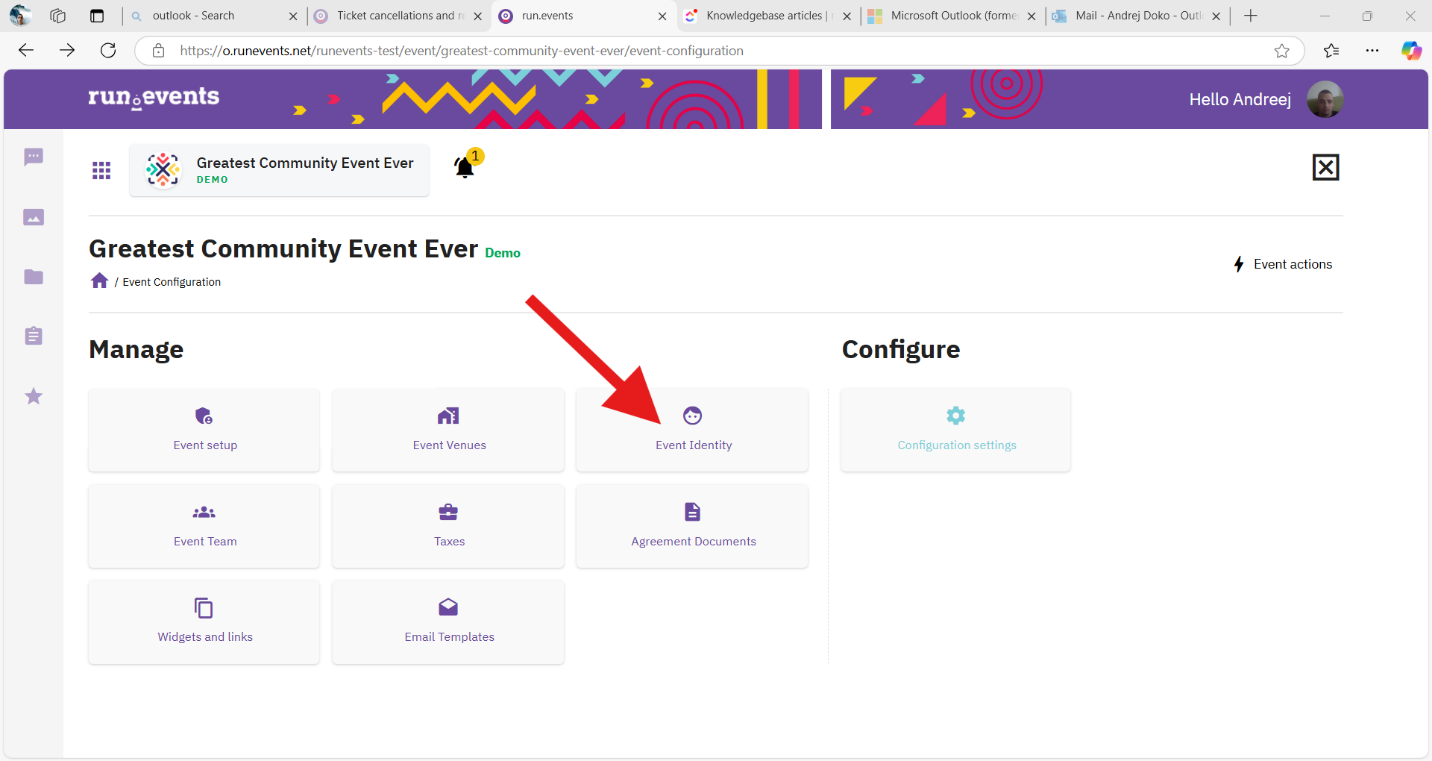
To edit the event logo and color, select configuration settings, there is the event identity.

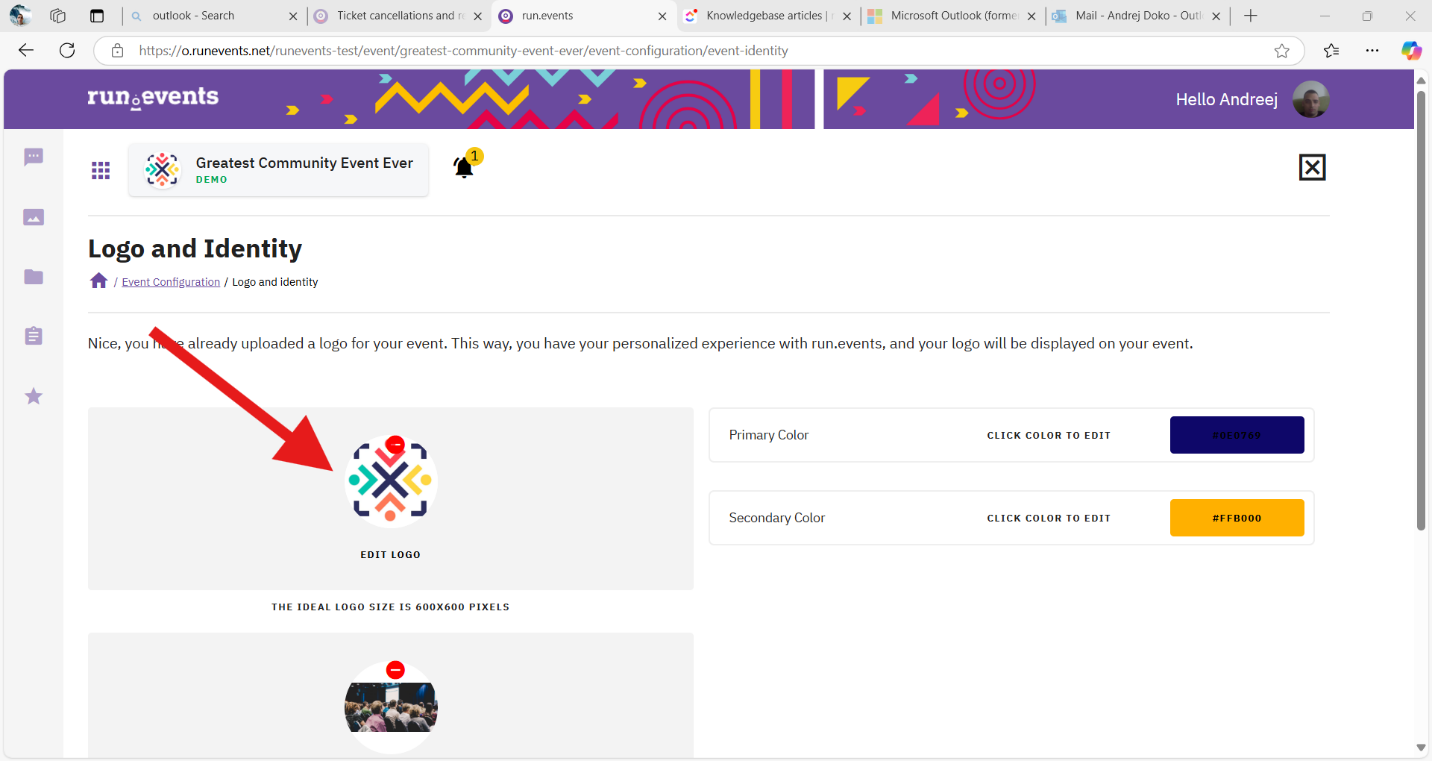
When you select the event identity, a window will open where you can choose the primary and secondary colors and logos.

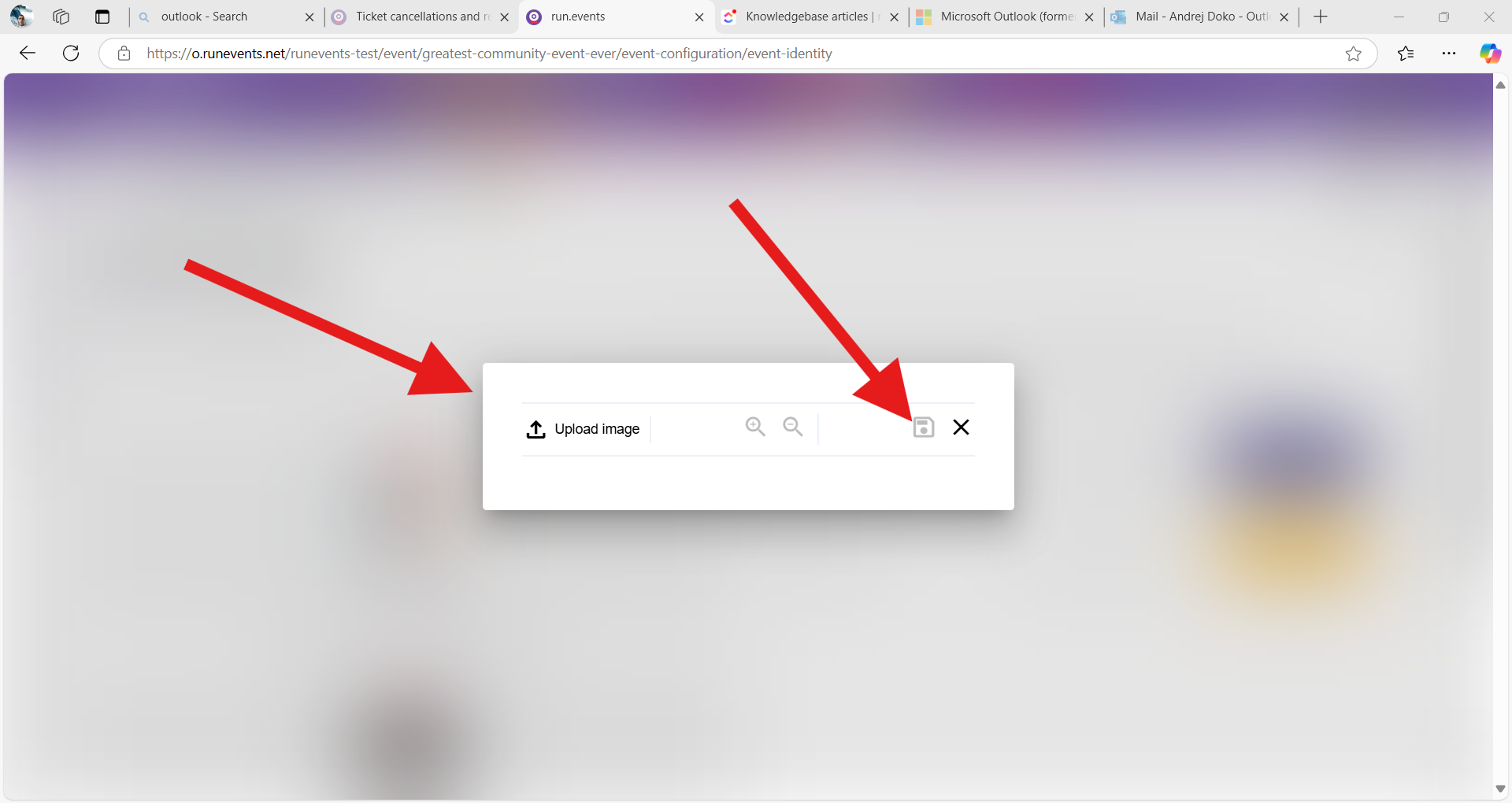
To change the logo, click on the event logo and a pop-up will open to upload a new logo. Click on the save icon and the logo should be updated. To change the color click on the color tab and select the color palette.
                                          ![0aba133222bffc624a57a36af21b91d8](https://pages.runevents.net/organizer-multimedia/226/9fe8882d-382c-4fde-a465-902fa946c812)   ![e2ad9502b0c2675b5bbe593267b5423d](https://pages.runevents.net/organizer-multimedia/226/236e2666-0402-4a81-a1f9-70b75f4d739c)   ![96e5c1eb395858339269ea6a39eba8e8](https://pages.runevents.net/organizer-multimedia/226/34a15781-4cc4-40fc-9b7e-00fd3f7e46f3)   ![72a1c24ff1c3b4e9e5468d1c4ebe925d](https://pages.runevents.net/organizer-multimedia/226/30cd1d9c-1699-4668-a912-f0e12d3c1578)